

Hi, I’m Tomo, co-founder & CEO of Genomelink/YourRoots.
In this post, I want to walk you through how our new YourRoots Map works. Since its first launch in 2025, with updates throughout this year and now integration into YourRoots v2, the Map has been one of the most popular tools among Genomelink/YourRoots users.
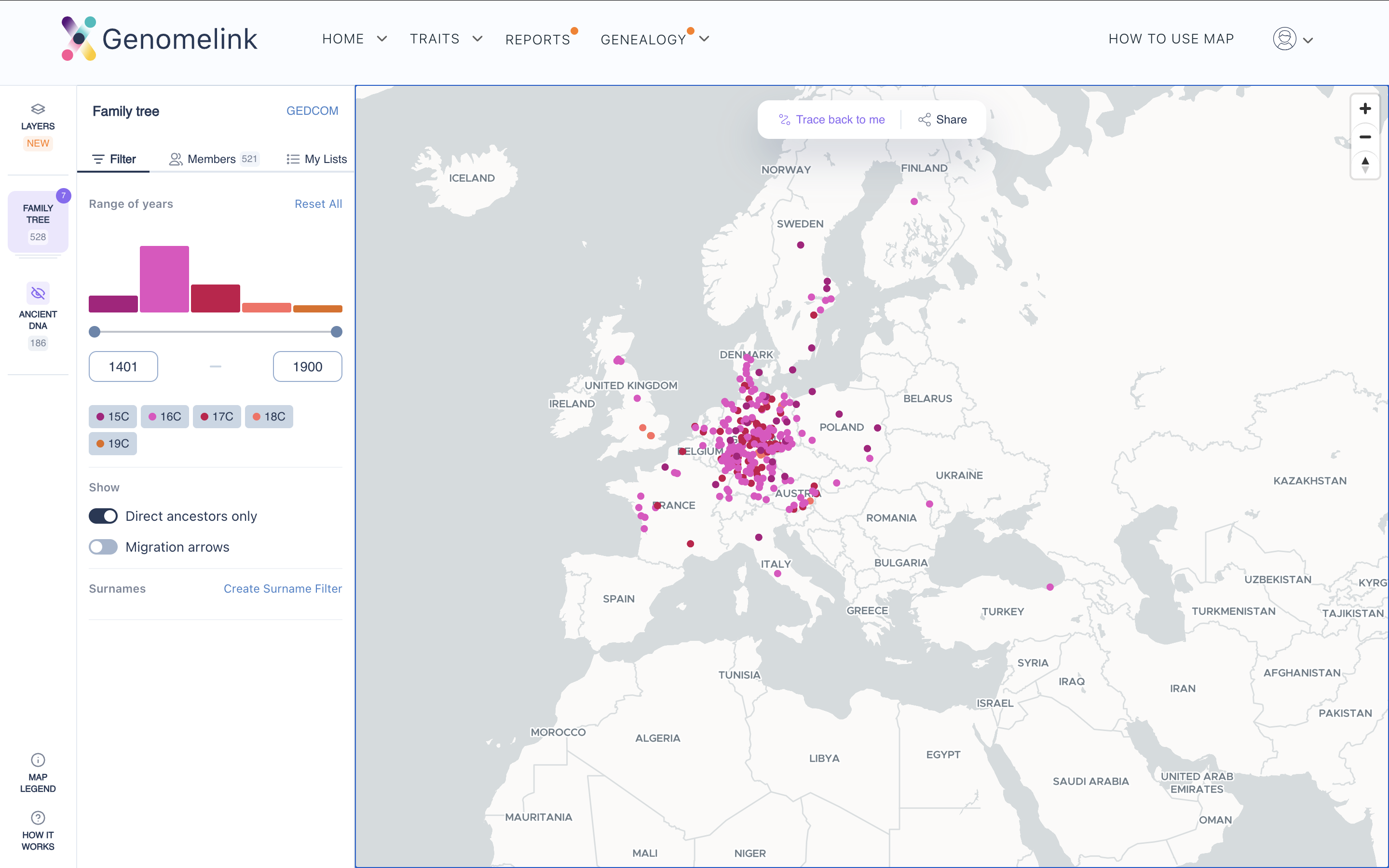
YourRoots Map turns your family tree into an interactive world map. Each ancestor in your tree shows up as a colored dot, placed by birth place and birth year. It’s a way to explore your family roots geographically. Here is the map built from Queen Victoria’s family tree.
You can filter ancestors by location, year, or surname to control who shows up. You can create a custom list to focus on certain family lines. You can switch between direct ancestors only and everyone in the tree with one click. You can change the root person, too.
One feature I recommend trying is “Trace Back To Me.” Click an ancestor you’re interested in and press the “Trace Back” button. It instantly shows how you’re related and draws the whole migration path from that ancestor down to you. In the example below, Queen Victoria’s line traces back ten generations to Stockholm, Sweden.

A few tips before you start
If you need more help, there’s an FAQ at the end of this post.
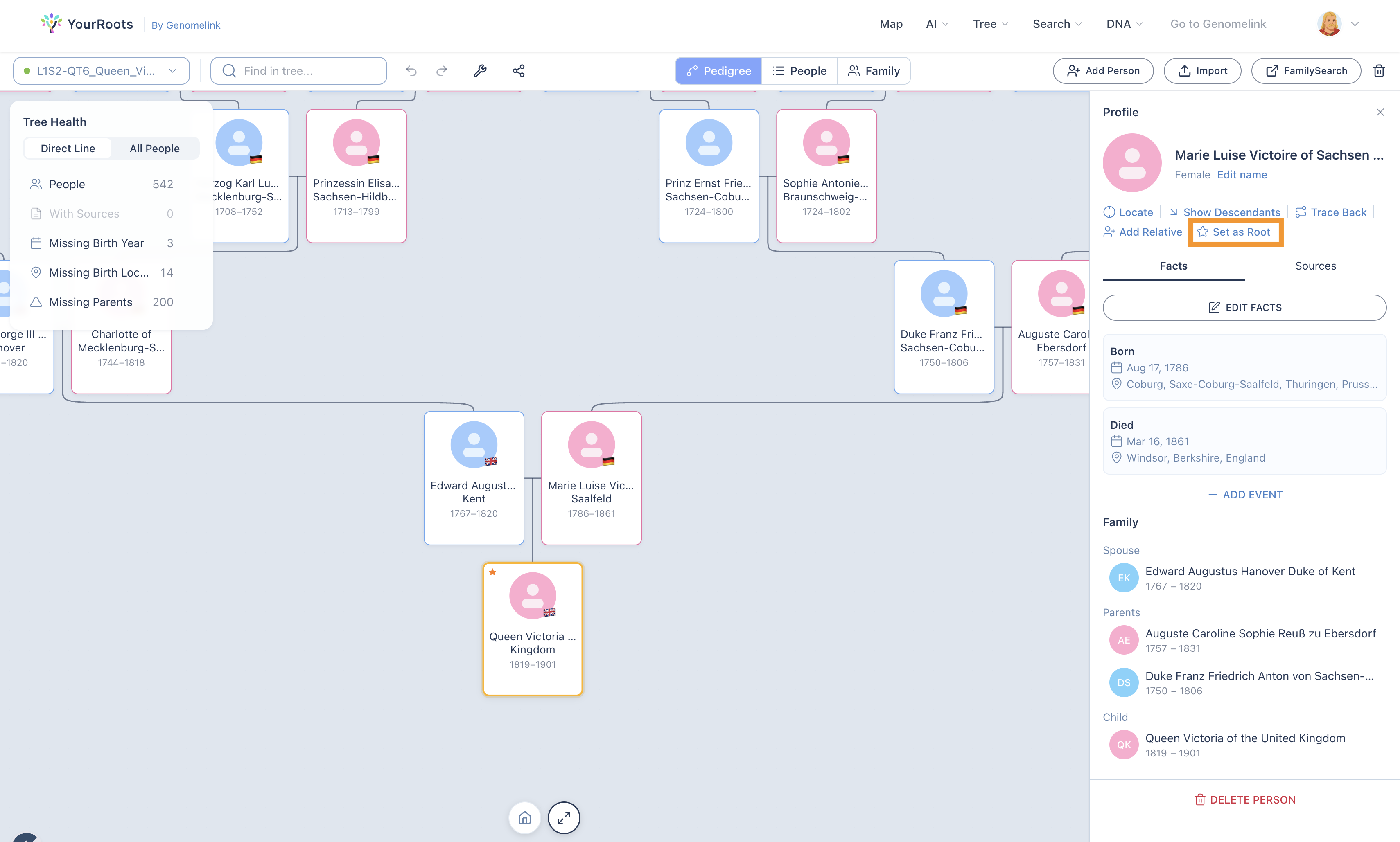
Root person. We do our best to detect the right “root person”: the owner of the tree, the person at the bottom of it. But depending on which genealogy site or software you use, or how your tree is structured, we sometimes pick the wrong person. If that happens, find the right person in the Tree Editor and click “Set as Root.” The Tree Editor and Map share the same root person setting.
Locations. Some ancestors may show up in the wrong place. We try our best to detect the correct location, but I have to be honest: our accuracy is about 90–95%. With a tree of hundreds or thousands of people, you’ll notice a handful of ancestors in the wrong spot.
Today, we use simple text-matching scripts that read each ancestor’s birth place field and assign a location. But the same city name can exist in several countries, states and counties get written in different ways, and an old town name may not match the modern city names in our logic. We’re always improving it, but it’s not 100% accurate yet.
When you find a wrong location, you can correct it one by one or in bulk. Pick an ancestor on the map, select “Edit Location,” and type the right city. That updates the latitude and longitude used on the map. To keep things simple, the location input uses modern place names (like Google Maps), so for an ancestor whose town no longer exists by that name, you’ll need to look up the modern city or town and use that. This correction only changes the latitude and longitude. It doesn’t overwrite the Birth Place text in your tree.

The locations we assign, and any corrections you make, are stored in your tree data (GEDCOM). Tree files have a dedicated location field, separate from the Birth Place text. So any changes you make in YourRoots Map carry over when you export the file back to your original tree editor.
Map + DNA
YourRoots Map started as a simple tree visualization, but it doesn’t stop there. We’re turning it into one place where you can explore your family roots across tree and DNA. Today, if you have a Genomelink account and have purchased our flagship reports like Deep Ancestry and Ancient Bloodlines, those results show up in the Map view.
Here is a real Genomelink customer comparing her family tree map with her Deep Ancestry breakdown of 160+ ethnicities and regions (posted with her permission). The Deep Ancestry results closely match her ancestors’ distribution from central to southern England, with small percentages from Northern Europe.

In the coming months, we’ll keep building on this Tree × DNA view and expand coverage to ancient DNA matching, Y-DNA/mtDNA haplogroups, and Genealogical Communities. We’ll update this post when those are available. If your ancestors are already in our public directory, you can also look them up in the Family Tree directory or the free US Census index.
That’s it for now. If you’d like to try YourRoots Map, create your account, set up your profile, and import your tree (GEDCOM), then open yourroots.com/tree/map. I hope you enjoy it!
FAQ
What file do I need?
A GEDCOM file. It’s the standard format for family tree data, so you can move your tree between genealogy sites and apps. Ancestry, MyHeritage, FamilySearch, Geni, Family Tree Maker, and RootsMagic all let you export one for free.
How do I download my GEDCOM file?
- Ancestry: open Trees, pick your tree, go to Tree Settings, and click “Export Tree.” Only the tree owner can export.
- MyHeritage: under Family Tree, open Manage Trees, find your tree, and choose the GEDCOM export.
- Geni: open the Family tab, go to Share Your Tree, and start an export. Geni emails you a download link.
- Family Tree Maker: File → Export. Choose Entire File, set the format to GEDCOM, and save.
- RootsMagic: File → Export Data → GEDCOM File. Pick a folder and confirm.
Can I import directly from FamilySearch?
Yes. On the tree upload screen, choose FamilySearch and log in. The import is automatic. For now it covers up to 8 generations, usually 200 to 300 people. That’s a technical limit we’re working on. If you want your full FamilySearch tree, contact us and we’ll find the best option.
How long does it take?
Usually 10 to 30 minutes. Very large trees can take a few hours. We’ll email you when your map is ready.
The wrong person is at the bottom of my map.
Open the Tree Editor, find the right person, and click “Set as Root.” The Map uses the same setting.
Some ancestors are in the wrong place.
Pick the ancestor on the map and use “Edit Location.” Use the modern name of the city or town. See the Locations tip above for why this happens.
Do corrections change my original tree?
No. Corrections only change the latitude and longitude we use for the map. Your Birth Place text stays as you wrote it. The coordinates are saved in your GEDCOM’s location field, so they carry over if you export the file back to your tree editor.
I need help.
If you have a Genomelink account, use the contact form at genomelink.io/profile/contact so we can check your account log. If you don’t have an account yet, email info@genomelink.io.


.png)